

Mobile Action Pro Course
This post uses production code from the Mobile Action Pro course. Learn Compose performance, Clean Architecture, and ship a real AI quiz app.
Compose runs through 3 phases: Composition → Layout → Draw. Most animation code defaults to the Composition phase - every frame change triggers recomposition. graphicsLayer lets you push visual effects down to the Draw phase, where changes only redraw without recomposing or relaying out.
This post explains when and how to use graphicsLayer for performance optimization, illustrated through a real WheelPicker case study.
Compose 3 Phases and the Performance Problem
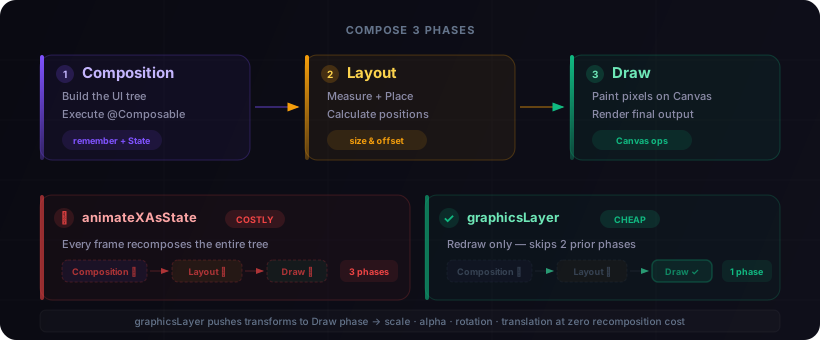
When you use animateFloatAsState or animateColorAsState, the new value creates a State change - Compose must re-run Composition + Layout + Draw. With graphicsLayer, you only pay for Draw.
This distinction becomes critical in scroll-driven animations where state changes happen every single frame. A LazyColumn with 5 visible items, each holding 3 animation states, means 15+ recomposition triggers per frame - far more work than the GPU needs.
What Can graphicsLayer Do?
Inside the graphicsLayer lambda, you directly access transform properties:
| Property | Description |
|---|---|
scaleX, scaleY | Scale transform |
alpha | Opacity |
translationX, translationY | Position offset |
rotationX, rotationY, rotationZ | 3D rotation |
shadowElevation | Drop shadow |
clip, shape | Clipping shape |
Changing any property here triggers only a redraw - no recomposition.
The key insight: the lambda version of graphicsLayer captures state reads at draw time, not composition time. This is how Compose knows it can skip the first two phases entirely.
Case Study: WheelPicker - From 25+ to 0 Recompositions per Frame
The Problem
A time picker with scroll wheel behavior: center items appear large and clear, off-center items shrink and fade. The initial implementation:
var centerIndex by remember { mutableIntStateOf(initialIndex) }

// State change every scroll frame → recompose entire LazyColumn
LaunchedEffect(listState) {
    snapshotFlow { listState.firstVisibleItemIndex }
        .collectLatest { centerIndex = it }
}

items(items.size) { index ->
    val isCenter = centerIndex == index
    // 3 animation states per item × 5 visible items = 15 recomposition triggers/frame
    val fontSize by animateFloatAsState(if (isCenter) 32f else 15f)
    val fontWeight by animateFloatAsState(if (isCenter) 700f else 350f)
    val color by animateColorAsState(if (isCenter) Purple600 else Grey400)
}
Cost per scroll frame: ~25+ recompositions - centerIndex state change cascade + 15 Animatable triggers + offscreen compositing buffer.
The Solution: Move Everything into graphicsLayer
items(items.size, key = { it }, contentType = { 0 }) { index ->
    Box(
        Modifier.height(itemHeightDp).graphicsLayer {
            // Calculate item distance from viewport center
            val info = listState.layoutInfo
            val viewportCenter =
                info.viewportStartOffset + info.viewportSize.height / 2f
            val itemCenter = info.visibleItemsInfo
                .firstOrNull { it.index == index + halfVisible }
                ?.let { it.offset + it.size / 2f } ?: viewportCenter

            val distance =
                (abs(itemCenter - viewportCenter) / itemHeightPx).coerceIn(0f, 2f)
            val eased = (distance / 2f).let { it * it }  // quadratic easing

            // All visual effects - zero recomposition
            scaleX = lerp(1f, 0.3f, eased)
            scaleY = scaleX
            alpha = scaleX
            rotationX =
                ((itemCenter - viewportCenter) / itemHeightPx)
                    .coerceIn(-2f, 2f) * -18f
            translationY =
                ((itemCenter - viewportCenter) / itemHeightPx)
                    .coerceIn(-2f, 2f) * 2f
        }
    ) { Text(items[index], style = baseTextStyle) }
}
Result: 0 recompositions per scroll frame. Scale, alpha, rotation, translation - all computed from scroll offset inside the draw phase.
Comparison
| Before | After | |
|---|---|---|
| Recompositions/frame | ~25+ | 0 |
| Animation states/item | 3 Animatable | 0 |
| Phase running effects | Composition | Draw |
| Offscreen buffer | Yes | No |
The numbers speak for themselves. On mid-range devices, this was the difference between visible jank and buttery-smooth scrolling.
Mobile Action Pro Course
This WheelPicker is part of a real AI quiz app built in the Mobile Action Pro course - where you learn Compose performance patterns by shipping production code.
Supporting Techniques
1. Callback Only on Scroll Settle
// BEFORE: fires every frame
snapshotFlow { listState.firstVisibleItemIndex }
    .collectLatest { centerIndex = it }

// AFTER: fires once when settled
snapshotFlow { listState.isScrollInProgress }
    .distinctUntilChanged()
    .collectLatest {
        if (!it) onSelectedChanged(listState.firstVisibleItemIndex)
    }
This pattern works well with Kotlin Coroutines - snapshotFlow + distinctUntilChanged is far cheaper than per-frame state updates.
2. Gradient Overlay Instead of Offscreen Compositing
// BEFORE: buffer allocation + blend mode
.graphicsLayer { compositingStrategy = CompositingStrategy.Offscreen }
.drawWithContent { drawRect(blendMode = BlendMode.DstIn) }

// AFTER: gradient drawn on top, no buffer needed
Box(Modifier.matchParentSize().drawWithContent {
    drawContent()
    drawRect(
        Brush.verticalGradient(listOf(White, Transparent)),
        endY = fadeRatio
    )
    drawRect(
        Brush.verticalGradient(listOf(Transparent, White)),
        startY = size.height - fadeRatio,
        endY = size.height
    )
})
Offscreen compositing allocates a separate bitmap buffer - expensive on memory-constrained devices. The gradient overlay approach achieves a similar visual effect without that allocation overhead.
3. LazyColumn Recycling Hints
items(count, key = { it }, contentType = { 0 })
contentType helps LazyColumn reuse composition slots more efficiently when all items share the same type. Combined with stable key, this minimizes the composition work LazyColumn needs to do during scroll.
When to Use graphicsLayer vs animateXAsState?
Use graphicsLayer | Use animateXAsState |
|---|---|
| Scroll-driven effects (LazyColumn, Pager) | One-shot transitions (click, toggle) |
| Many items animating every frame | Few items, low frequency |
| Only need transforms (scale, alpha, rotation) | Need content changes (fontSize, color, text) |
| Performance-critical paths | Prototypes / low-item-count UI |
graphicsLayer only supports transform properties - it cannot change actual text size or color. But for scroll animations, scale + alpha typically create an equivalent visual effect at zero cost.
The decision is straightforward: if your animation drives from continuously-changing values (scroll offset, drag position, sensor data), graphicsLayer is almost always the right choice. For discrete state transitions, animateXAsState provides better ergonomics with acceptable performance.
Takeaways
graphicsLayerruns in the Draw phase - skips Composition + Layout entirely- Compute visual effects from scroll offset inside the lambda, not through State
- 3D effects are free -
rotationX,translationYrun in the same phase, adding them costs nothing extra - Use gradient overlays to avoid offscreen compositing overhead
- Settle-only callbacks - don't fire state changes every scroll frame
Course
Master Jetpack Compose Performance in Practice
The Mobile Action Pro course covers graphicsLayer, LazyColumn optimization, and production-ready Compose patterns - with a real AI quiz app project where these techniques are applied.
- Jetpack Compose with performance best practices
- Clean Architecture, MVVM, Dependency Injection
- 9 modules, 108 hands-on lessons
- Lifetime access & community support